
Email Integration
Receive Top Provider leads directly in your inbox with formatted details for quick review and response
Why Choose Email Integration?
Email integration is perfect for teams with email-centric workflows or those who want a simple setup without technical requirements.
Email Integration Overview
The Top Provider Email Integration delivers leads directly to your inbox in a professionally formatted email that includes all essential lead information. Each email:
- Arrives in real-time as leads are received in the system
- Contains complete lead details formatted for quick review
- Requires no technical setup or maintenance
- Works with any email client or service
- Supports forwarding to CRM-specific email addresses
Quick Setup Guide
Setting up Email Integration involves a few simple steps:
Access Notifications & Integrations
Sign in to the Seller Portal and navigate to Notifications & Integrations in the left sidebar.
Alternatively, you can navigate directly to: /delivery
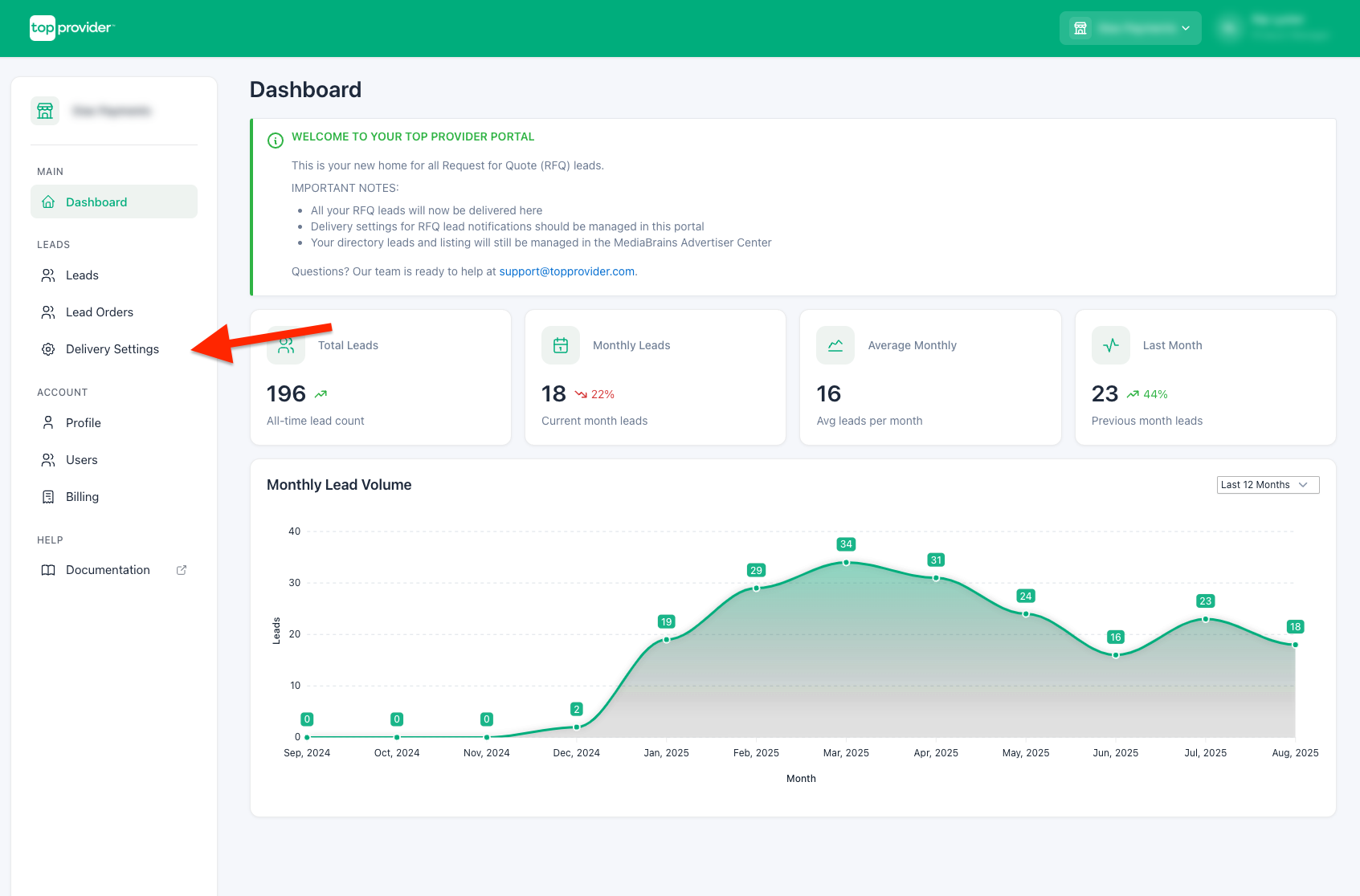
Create Email Endpoint
On the Notifications & Integrations page, locate and click the "+ Add Email" button. This will open a modal dialog to configure your email endpoint.
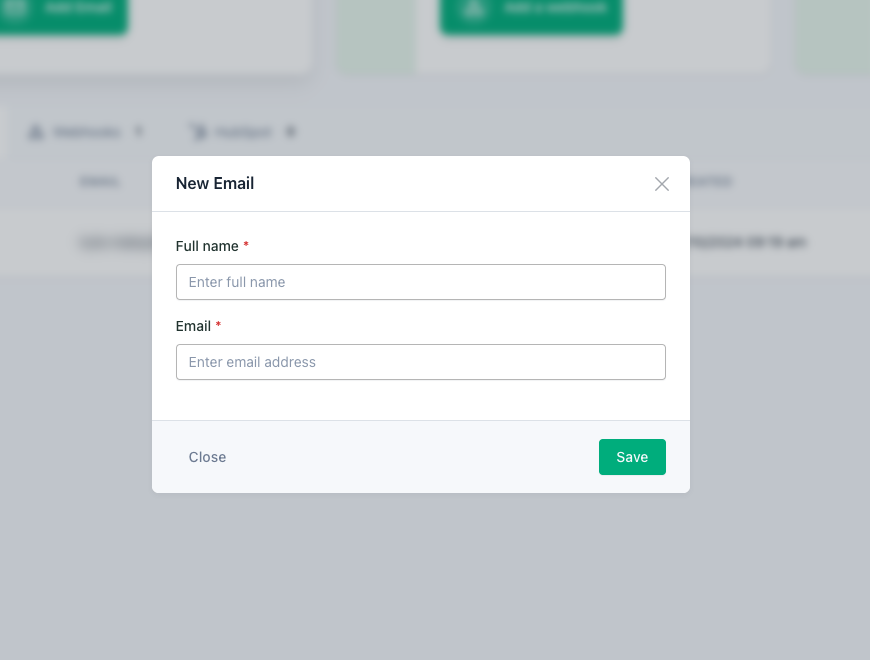
Configure Recipients
Add email recipients that should receive lead notifications:
- Full Name: Enter the recipient's full name (e.g., "Sales Department", "John Smith")
- Email Address: Enter a valid email address to receive lead notifications
Configure Additional Options
- Lead Order Selection (Optional): Associate specific lead orders with this email endpoint
- Email Format: By default, emails are sent in HTML format with a responsive design
Complete Setup
After entering all required information, click "Save" to create your email endpoint.
Fields Included in Emails
For a complete list of all available fields and their descriptions, see our Lead Fields Reference.
Meeting Alert Section
When a lead has shared their availability before the lead is delivered, the lead email includes a meeting alert section displaying the requested time in the lead's timezone with an explicit timezone label. The section only renders when the lead has a meeting request; leads without one produce the standard email.

See Meeting Requests for the full cross-channel meeting behavior.
Lead Update Emails
When a lead requests a meeting or updates an existing availability after the lead has already been delivered, Top Provider sends a lead update email to endpoints that have the meeting time field included in their configuration and are set to receive lead updates. Endpoints missing either piece don't receive updates.
- Subject line:
Lead Update from Top Provider on your order [Order Name] - Contents: lead name, company, solution/category, original lead delivery date, the requested meeting time (lead's timezone, with timezone label), and a call-to-action.
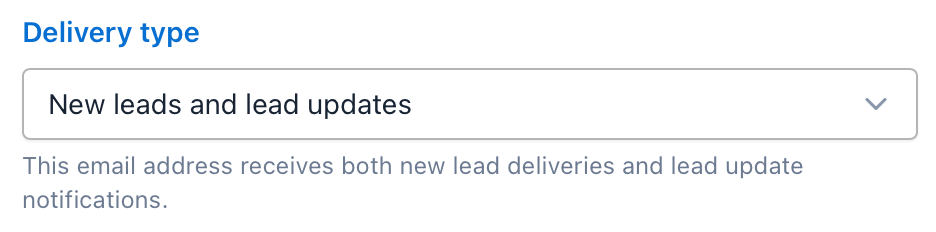
Endpoint Type Setting
Each email endpoint has a type setting that controls which deliveries it receives:
| Type | Behavior |
|---|---|
| New leads only | The endpoint receives only initial lead deliveries. |
| Lead updates only | The endpoint receives only lead update emails (useful for routing updates to a different inbox). |
| New leads and lead updates (default) | The endpoint receives both. |
Testing Your Configuration
Verify your setup is working correctly:
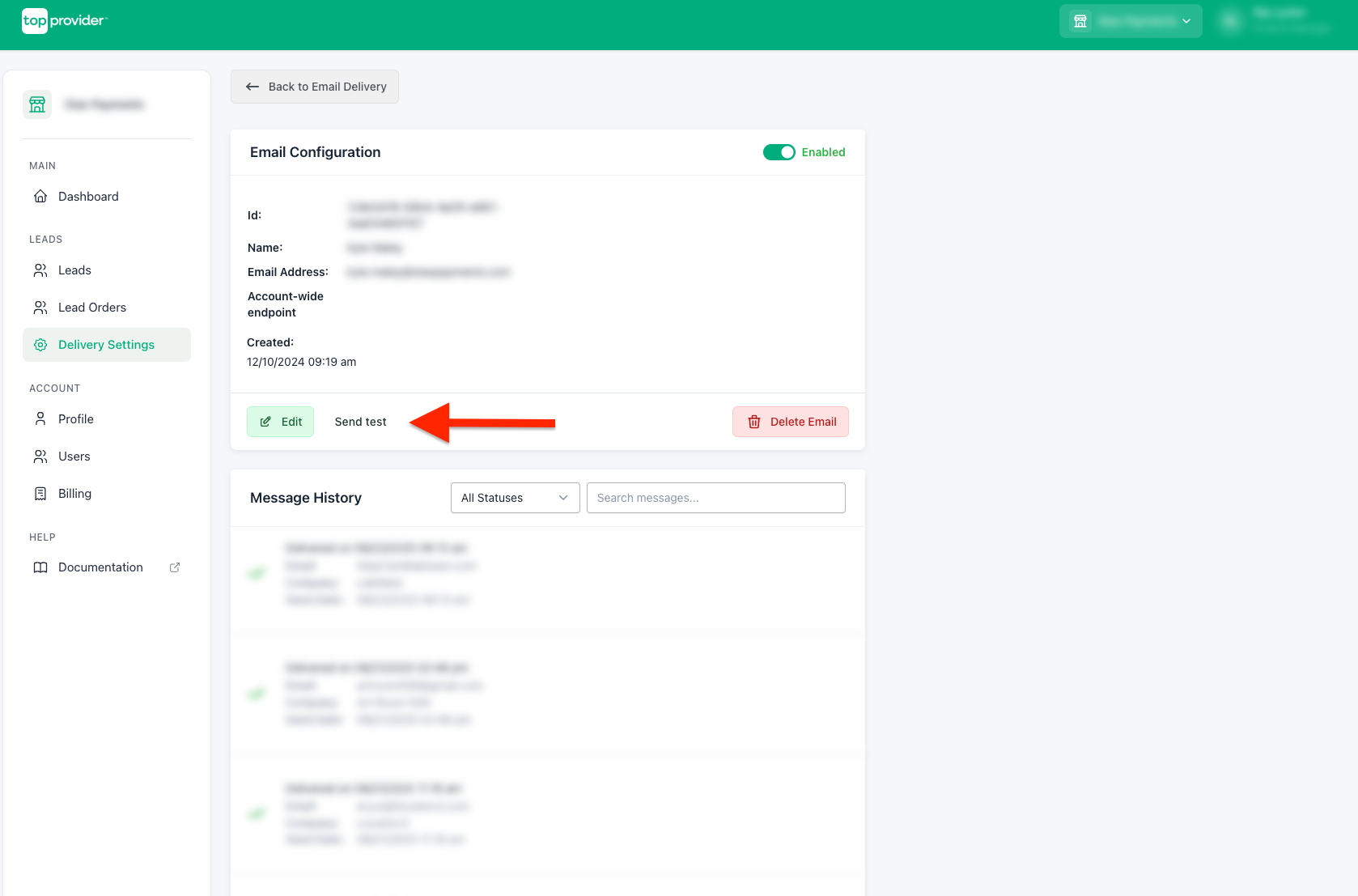
Access Endpoint Details
Go to your created email endpoint and click "Details" to access the endpoint details page
Test the Configuration
Locate the "Send test" button and click it to send a test lead notification
View Notification History
Click on "Notification History" in the tab navigation to review delivery status
- Check timestamps of delivery attempts
- Verify success status or error messages
Check Your Inbox
Check the inbox of the email address(es) configured in the endpoint
Verify Email Content
Confirm that the email format is correct and contains all expected data
Test leads support custom field values so you can verify end-to-end data flow with realistic data. For details on configuring custom test values, see Testing Your Integration.
If the email doesn't appear in your inbox, check spam/junk folders and consider whitelisting the SellerPortal email domain.
Optimizing Your Email Integration
Take your email integration further:
Email Workflow Enhancements
Set Up Email Filtering
Set up email filtering rules to organize Top Provider leads in your inbox
Lead Order Selection
Select specific lead orders to associate with different email endpoints to organize lead routing
Forward to CRM
Forward to CRM-specific email addresses for automatic lead capture
Common Issues & Solutions
| Issue | Solution |
|---|---|
| Emails not received | Check notification history, verify email address, check spam folders, whitelist the @topprovider.com email domain |
| Delivery failures | Check if mailbox is full, verify domain exists and can receive emails |
| Multiple notifications | Check if lead is submitted multiple times, verify you don't have duplicate endpoints |
Need help? Contact our support team at support@topprovider.com if you need assistance.