
HubSpot Integration
Connect Top Provider with HubSpot to automatically create/augment Contact and post timeline events
Purpose-built for teams that keep HubSpot as the system of record for Contacts and want automated contact creation plus clear activity on the contact timeline.
Prefer the HubSpot Forms API approach over OAuth? The Webhook Integration supports a dedicated HubSpot Forms API output format that generates payloads compatible with the HubSpot Forms v3 API.
What This Integration Does
Top Provider's HubSpot integration performs two actions — and only these two:
- Create or augment a Contact in HubSpot using your field mappings.
- Post a Timeline Event on that contact's activity feed for traceability.
Prerequisites
- A HubSpot account with permission to install apps.
- Access to the Top Provider Seller Portal to manage integrations.
Quick Setup Guide
Connect your HubSpot account in minutes:
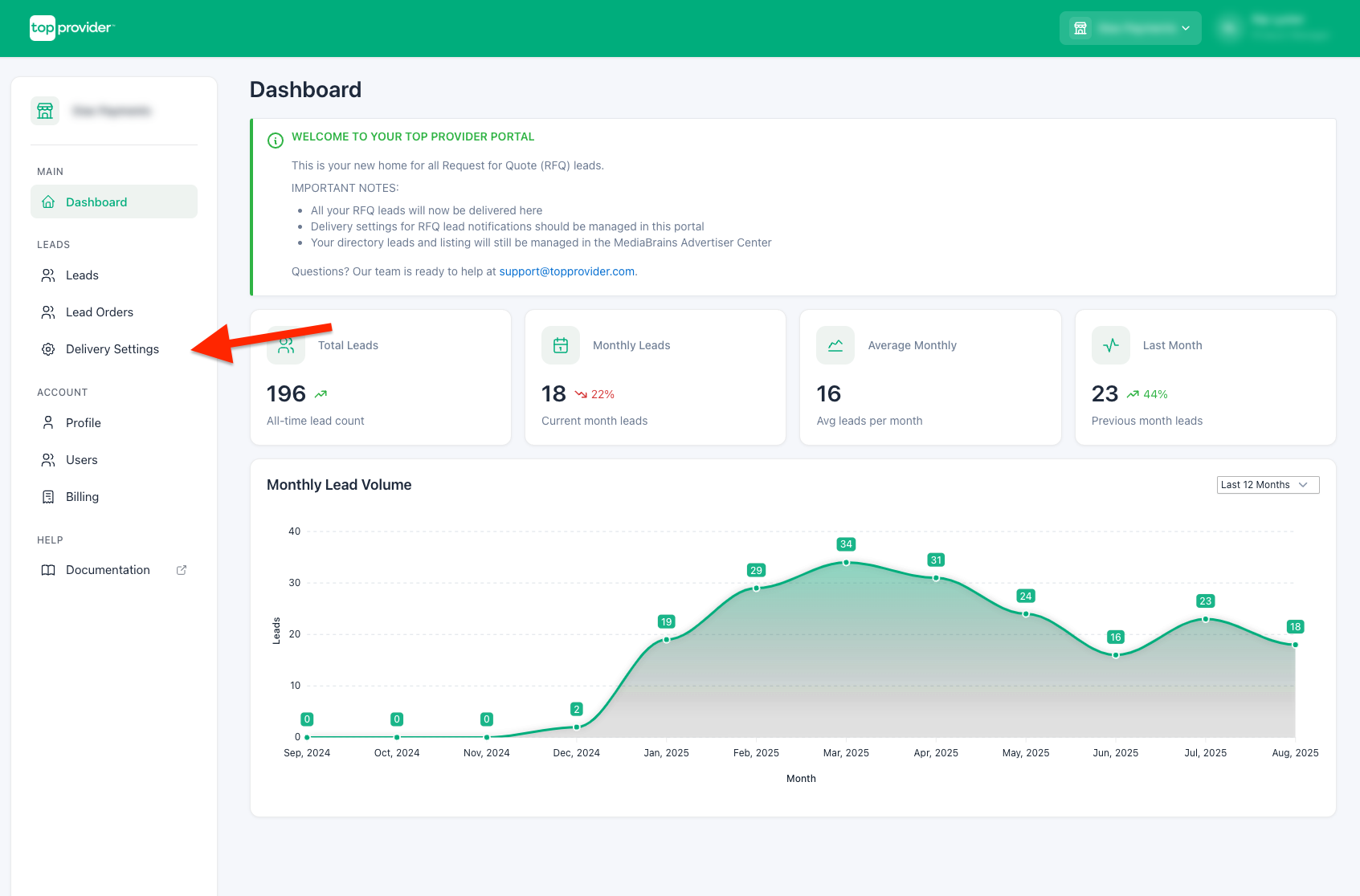
Open Notifications & Integrations
Sign in to the Seller Portal and go to Notifications & Integrations (left sidebar) or navigate to /delivery.
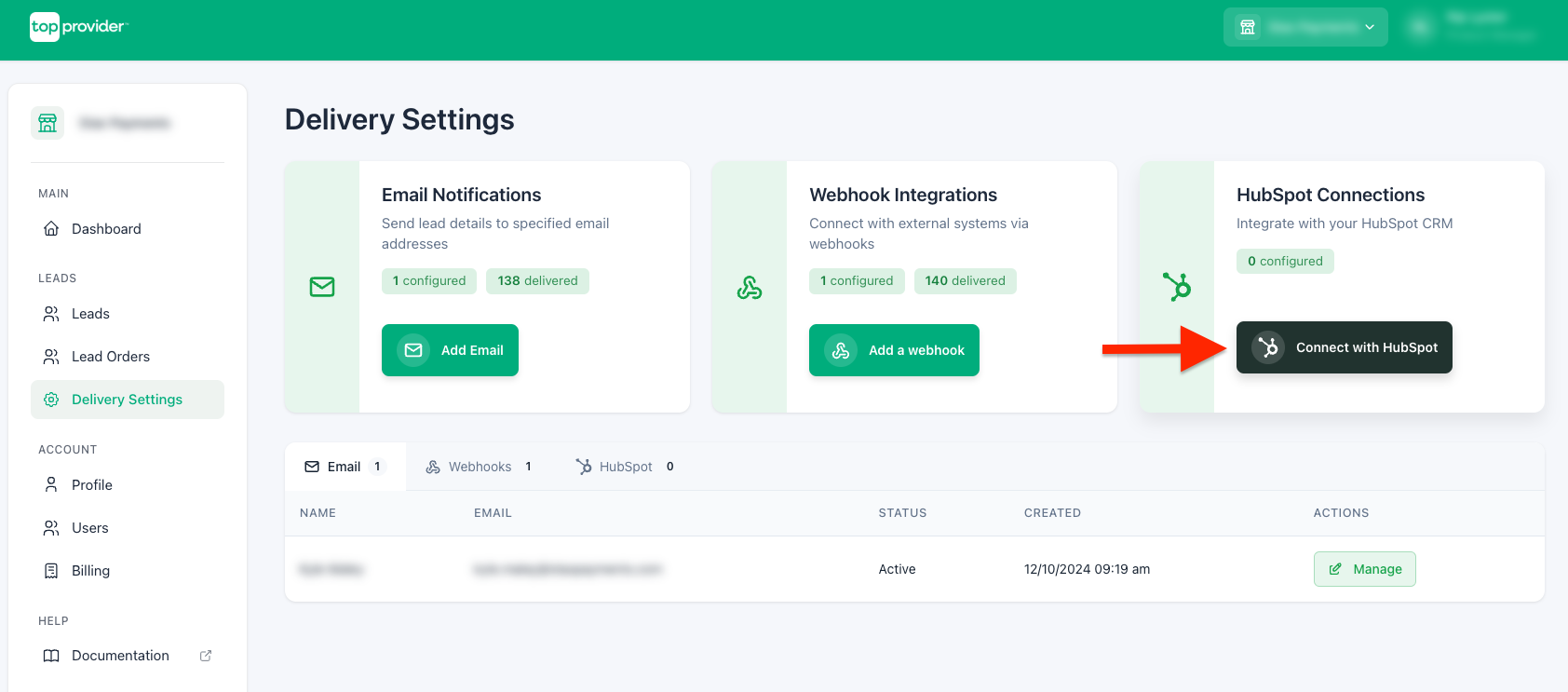
Connect with HubSpot
Click "+ Connect with HubSpot" to start the HubSpot OAuth flow in a new tab.
Grant Permissions (Scopes)
When prompted, grant only the scopes our integration needs:
crm.objects.contacts.write— create/update contactstimeline— create timeline events
Verify Connection
After authorization you'll return to the Seller Portal. In HubSpot Connections you'll see:
- HubSpot portal (domain)
- Connected user email
- Granted scopes
- Connection date
Complete Setup
Your integration is ready to create contacts and post timeline events.
Configuring Your Integration
Customize behavior to match your workflow:
Access Integration Details
In HubSpot Connections, locate your connection and click "Details."
Configure Settings
On the integration page, click "Settings."
Adjust Constants (Optional)
Add key–value pairs that will be sent with every contact we create. Common examples for HubSpot Contacts:
lifecyclestage(e.g.,lead,marketingqualifiedlead)hs_lead_status(e.g.,NEW,OPEN,IN_PROGRESS— values depend on your portal)- Any custom contact property you maintain (e.g.,
source_system: top_provider)
Configure Advanced Settings (Optional)
Under Advanced Settings, configure additional integration behavior:
- Update Existing Contacts — When enabled, the integration updates the contact record's mapped fields for contacts that already exist in HubSpot. When disabled, existing contacts only receive a Timeline Event without field updates.
- Formatted Timeline Event — When enabled, the timeline event is formatted for improved readability (recommended).
Configure Lead Order Assignment (Optional)
Click "Attached Lead Orders" to choose which Top Provider lead orders feed this connection. By default, all lead orders will send to HubSpot.
Save
Click "Save" to apply your configuration.
Field Mappings
Control which Top Provider fields map to contact properties in HubSpot.
Open Field Mappings
In Settings, click "Adjust Field Mappings."
Map Standard Fields
For each field, enter the exact internal property name from HubSpot (e.g., email, firstname, lastname, lifecyclestage, hs_lead_status).
Add More Mappings
Under Available Fields, add any additional Top Provider fields and map them to HubSpot contact properties — including your custom contact properties.
Save
Click "Save" to confirm.
Need to check internal names? In HubSpot go to Settings → Properties → Contacts, open a property, and click the </> icon to see its internal name.
To capture meeting data in HubSpot, map Requested Meeting Time to a custom datetime property and, optionally, Formatted Requested Meeting Time to a single-line text property for easy display in the lead's timezone. See Meeting Requests.
Timeline Events
Each delivery generates a clear Timeline Event on the contact's activity feed. You can filter for these in HubSpot's activity panel (look under Integrations or by event type) to audit deliveries and build workflows.
Lead Updates
When a lead's availability changes on a delivered lead (for example, when they request a meeting after the lead was originally sent, or update a time they'd previously picked), Top Provider updates the HubSpot contact and posts a new timeline event, provided the connection has the meeting time field mapped and is set to receive lead updates.
- Contact upsert. The contact is re-pushed with the Requested Meeting Time field populated. HubSpot's native de-duplication matches on the lead's email, so no duplicate contact is created. Only the meeting-related field is written; other contact properties are left untouched, respecting the Update Existing Contacts advanced setting.
- Lead Update timeline event. A timeline event is posted on the contact using the same structure as the original lead-delivery event, with the meeting field populated and a flag identifying it as a lead update. HubSpot workflows built on the lead-delivery event structure continue to work without changes.

Turning Lead Updates On or Off
HubSpot connections support two settings: New leads only, or New leads and lead updates (the default). Unlike email and webhook endpoints, there's no "lead updates only" option, because the connection delivers to a single HubSpot account and can't split updates off on their own. Set the connection to New leads only if you don't want the contact upsert and timeline event when a lead's availability changes.
See Meeting Requests for the full cross-channel behavior.
Testing Your Configuration
Send a Test
On the integration details page, click "Send test." We'll send a sample contact payload and a sample timeline event.
Review Notifications
Open Notification History to see delivery attempts, timestamps, status, and any error messages returned by HubSpot.
Check in HubSpot
In HubSpot, open Contacts and find the test contact. Confirm properties populated as expected. In the contact's Activity feed, verify your Top Provider timeline event appears.
If the test contact or timeline event doesn't appear, use Notification History to identify any property name typos or permission mismatches.
Test leads support custom field values so you can verify end-to-end data flow with realistic data. For details, see Testing Your Integration.
Behavior with Existing Contacts
If the contact already exists in HubSpot, the integration does not create a duplicate. A Timeline Event is posted to the existing contact for traceability.
If Update Existing Contacts is enabled in Advanced Settings, the integration also updates the contact's mapped properties with the latest lead data. If disabled, only the Timeline Event is posted and existing contact properties remain unchanged.
Common Issues & Fixes
| Symptom | Cause | Fix |
|---|---|---|
PROPERTY_DOESNT_EXIST for hs_pipeline_stage, hs_pipeline, or dealstage | These are not contact properties (they belong to Tickets/Deals). | Remove pipeline-related fields from constants and mappings. Use contact properties only (e.g., lifecyclestage, hs_lead_status). |
| Contact not created | Missing required fields like email | Ensure email is mapped and present in the payload. |
| Timeline event missing | App lacks timeline scope or event type not installed | Reconnect and grant timeline scope; confirm the app's event template is active. |
| "Invalid property value" | Using display labels instead of internal values | Use internal names/values (see tip above or use HubSpot's Properties API). |
FAQ
Need help? Contact support at support@topprovider.com.